
In today’s world, our smartphones and devices have become our lifelines. From staying connected with friends to managing work tasks, we rely heavily on them. However, one of the biggest challenges we face is battery life. Constant charging is inconvenient, and over time, it affects the longevity of your device. Fortunately, optimizing your device’s display settings can make a huge difference. This article explores Smart Display Settings to Save Battery effectively in 2026.
Why Display Settings Affect Battery Life
The display is often the most power-hungry component of any device. High brightness, dynamic wallpapers, and long screen-on times can drain your battery rapidly. By adjusting display settings intelligently, you can extend your device’s battery life without compromising usability.
Key factors affecting battery usage include:
- Screen brightness: Higher brightness consumes more energy.
- Screen timeout: Longer screen-on durations waste battery.
- Dynamic wallpapers and animations: These use extra processing power.
- Display resolution: Higher resolutions demand more from your GPU and battery.
- Adaptive refresh rates: Faster refresh rates increase power consumption.
Understanding these factors allows you to implement Smart Display Settings to Save Battery efficiently.
1. Adjust Screen Brightness Smartly
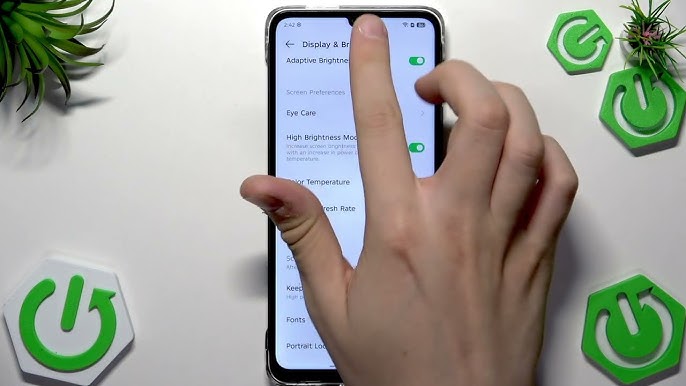
One of the easiest ways to save battery is to optimize brightness. Modern devices come with adaptive brightness, which adjusts brightness based on ambient lighting. This not only protects your eyes but also conserves battery.
Tips:
- Enable adaptive brightness to let your device automatically adjust.
- Avoid keeping brightness at 100% unless necessary.
- Use manual adjustments in very bright or dim environments to fine-tune.
By using these techniques, you’re already implementing Smart Display Settings to Save Battery without noticing much change in usability.
2. Reduce Screen Timeout Duration
The screen timeout setting determines how long your device stays on when inactive. Long timeouts drain battery unnecessarily.
Recommended settings:
- For smartphones: 15–30 seconds
- For tablets: 30–60 seconds
This simple change is a classic example of Smart Display Settings to Save Battery and can noticeably extend your device’s daily usage time.
3. Enable Dark Mode
Dark mode is not just trendy; it saves battery, especially on OLED and AMOLED screens. These displays consume less power when displaying dark colors because each pixel emits its own light.
Tips:
- Enable system-wide dark mode.
- Use dark themes for apps that support them.
- Combine dark mode with Smart Display Settings to Save Battery for maximum efficiency.
4. Turn Off Always-On Display Features
While always-on displays are convenient for checking notifications, they can significantly reduce battery life.
Suggestions:
- Disable always-on display unless needed.
- Limit notifications and choose only essential alerts.
- Use Smart Display Settings to Save Battery principles by prioritizing necessary functions over aesthetics.
5. Optimize Refresh Rate
High refresh rate screens (90Hz, 120Hz, or higher) provide smooth animations but consume more battery. Adjusting the refresh rate can save energy while maintaining performance.
Strategies:
- Use adaptive refresh rates if available.
- Lower refresh rate to 60Hz for general tasks like messaging or browsing.
- Apply Smart Display Settings to Save Battery by matching refresh rates to the type of activity.
6. Limit Dynamic Wallpapers and Animations
Animated wallpapers and screen effects may look attractive but drain your battery quickly.
Practical tips:
- Use static wallpapers or darker images.
- Reduce or disable unnecessary animations in device settings.
- Combine this with reduced brightness and screen timeout for comprehensive Smart Display Settings to Save Battery.
7. Adjust Display Resolution
Modern smartphones often allow users to switch between multiple resolutions. High resolution is visually appealing but consumes more battery.
Recommendations:
- Switch to medium or low resolution for daily use.
- Reserve high resolution for gaming or content creation.
- This is a powerful method of implementing Smart Display Settings to Save Battery without affecting your regular tasks.
8. Enable Battery Saver or Power Saving Mode
Most devices have a built-in battery saver or power-saving mode. These modes automatically adjust display settings, background activity, and performance to maximize battery life.
Advantages:
- Automatically dims brightness.
- Limits background apps and notifications.
- Adjusts refresh rate and disables non-essential visual effects.
By activating these features, your device will adopt Smart Display Settings to Save Battery intelligently and effortlessly.
9. Use Screen Filters or Blue Light Reduction
Blue light filters reduce eye strain but also slightly reduce battery consumption because they lower overall screen brightness.
Tips:
- Enable night mode or blue light filter.
- Schedule it to turn on automatically during evening hours.
- This subtle adjustment is another effective way to incorporate Smart Display Settings to Save Battery.
10. Keep Your Device Updated
Software updates often include optimizations for battery efficiency. Manufacturers release updates that improve display performance and power management.
Action points:
- Regularly update your device firmware.
- Install app updates, especially for system apps controlling display features.
- Updating ensures your Smart Display Settings to Save Battery strategies are supported by the latest technology.
11. Monitor Screen Usage and Adjust Accordingly
Modern devices provide detailed battery usage statistics. Reviewing these can help you understand which apps or settings drain your battery the most.
Practical steps:
- Go to Settings > Battery > Battery Usage.
- Identify apps with high screen-on time.
- Adjust brightness, refresh rate, or animation settings for those apps to maximize battery conservation.
12. Combine Multiple Settings for Maximum Efficiency
Implementing a single adjustment helps, but combining multiple Smart Display Settings to Save Battery can significantly extend your device usage.
Example combination:
- Adaptive brightness enabled
- Screen timeout at 15–30 seconds
- Dark mode on
- Refresh rate reduced
- Static wallpaper used
This combination provides optimal battery savings without compromising user experience.
Conclusion
Battery life is one of the most critical aspects of mobile and tablet usage in 2026. By understanding how your display affects energy consumption and implementing Smart Display Settings to Save Battery, you can extend battery longevity and enjoy uninterrupted device use. From brightness and screen timeout adjustments to dark mode, refresh rate optimization, and smart software updates, these strategies provide a practical roadmap for anyone looking to maximize their device’s efficiency.
Incorporating these tips into your daily routine ensures you spend less time tethered to chargers and more time enjoying your technology. Make these Smart Display Settings to Save Battery a habit, and you’ll notice a remarkable improvement in both battery life and device performance.