
Introduction :
Customizing your smartphone is no longer just a luxury—it’s a necessity. If you want better performance, improved battery life, and a more personalized experience, learning how to customize Android settings like a pro can completely transform how you use your device.
In this comprehensive guide, you’ll discover practical, easy-to-follow tips that will help you unlock the full power of your Android phone. Whether you’re a beginner or a tech enthusiast, this article will walk you through everything step by step.
Why Customizing Android Settings Matters
Before diving into the steps, let’s understand why customization is so important.
- Improves phone speed and performance
- Extends battery life
- Enhances privacy and security
- Creates a personalized user experience
- Reduces unnecessary background activity
When you know how to customize Android settings like a pro, you’re not just using your phone—you’re optimizing it.
H2: Essential Android Settings You Should Customize First
H3: 1. Optimize Display Settings for Better Experience
Your display is the most used part of your phone. Adjusting it properly can improve both comfort and battery life.
What to do:
- Reduce screen timeout (15–30 seconds recommended)
- Enable Dark Mode to save battery
- Adjust brightness manually instead of auto-brightness
- Change font size and style for readability
Pro Tip: Dark Mode is especially useful on OLED screens as it consumes less power.
H3: 2. Customize Notifications Like a Pro
Too many notifications can be distracting. Smart users control them efficiently.
Steps:
- Go to Settings → Notifications
- Disable notifications for unnecessary apps
- Use “Priority Notifications” for important apps
- Enable notification categories (Android 12+)
Example:
Allow WhatsApp messages but block game notifications.
This is a key step when learning how to customize Android settings like a pro.
H3: 3. Control Background Apps and Battery Usage
Many apps run in the background and drain battery.
How to fix it:
- Go to Settings → Battery → App usage
- Restrict background activity for unused apps
- Enable Battery Saver mode
- Turn on Adaptive Battery
Result:
You’ll notice longer battery life and smoother performance.
H2: Advanced Customization Techniques
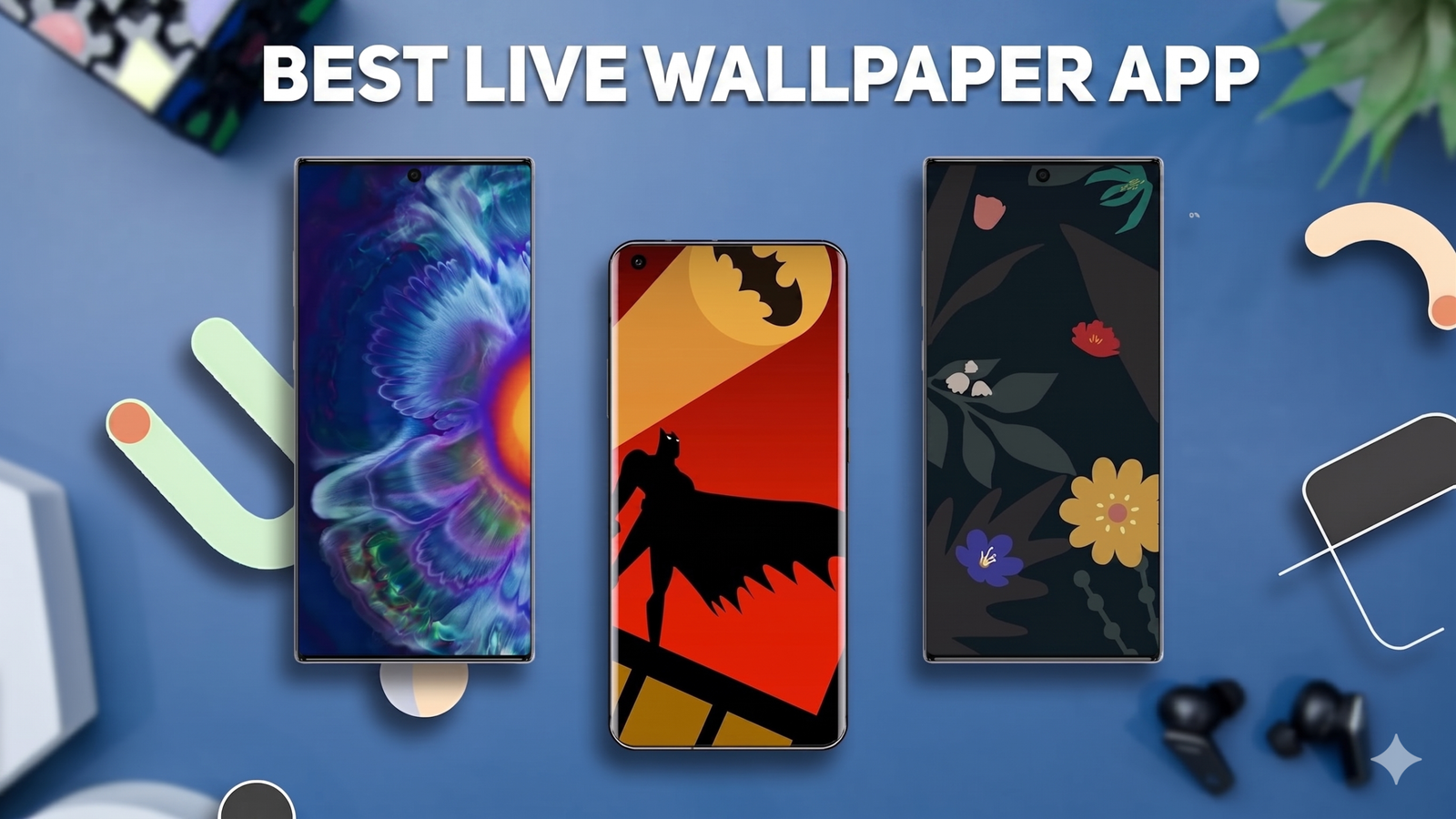
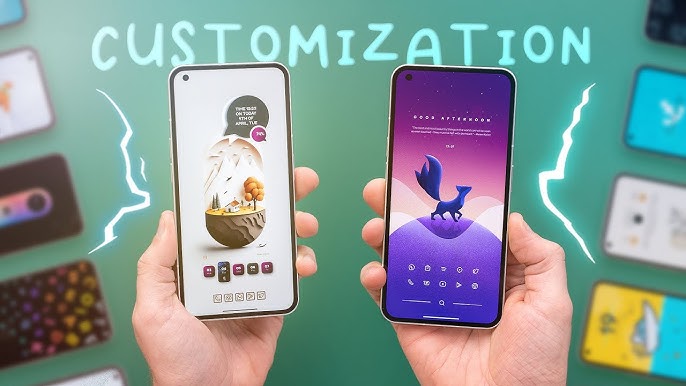
H3: 4. Personalize Home Screen and Launcher
Your home screen defines your user experience.
Options:
- Use custom launchers like Nova Launcher
- Change icon packs
- Add useful widgets (weather, calendar, notes)
- Organize apps into folders
Example Layout:
- Top: Clock widget
- Middle: Essential apps
- Bottom: Frequently used apps
This makes navigation faster and cleaner.
H3: 5. Customize Quick Settings Panel
Quick Settings allow instant access to important features.
How to customize:
- Swipe down → Tap edit (pencil icon)
- Add/remove tiles like:
- Wi-Fi
- Bluetooth
- Flashlight
- Screen Recorder
Pro Tip:
Keep only frequently used options for faster access.
H3: 6. Set Up Gesture Controls
Gesture navigation is faster than traditional buttons.
Enable gestures:
- Go to Settings → System → Gestures
- Turn on gesture navigation
Benefits:
- More screen space
- Faster navigation
- Modern user experience
H2: Privacy and Security Customization
H3: 7. Manage App Permissions
Apps often access more data than needed.
Steps:
- Go to Settings → Privacy → Permission Manager
- Check permissions like:
- Camera
- Location
- Microphone
Best Practice:
Allow permissions only when necessary.
H3: 8. Enable Advanced Security Features
Security is crucial when customizing your Android.
Must-enable features:
- Fingerprint lock or Face Unlock
- Find My Device
- App Lock (if available)
- Two-factor authentication
Pro Tip:
Use a strong PIN instead of simple patterns.
H2: Performance Boosting Settings
H3: 9. Reduce Animations for Faster Speed
Animations look nice but slow down your phone.
How to disable:
- Enable Developer Options
- Set animation scale to 0.5x or Off
Result:
Your phone will feel much faster instantly.
H3: 10. Clean Up Storage Efficiently
Storage clutter slows down your device.
What to do:
- Delete unused apps
- Clear cache regularly
- Use built-in storage cleaner
Example:
Remove duplicate photos and large files.
H3: 11. Turn Off Auto-Sync for Unnecessary Apps
Auto-sync consumes data and battery.
Steps:
- Settings → Accounts → Auto-sync
- Disable for unused accounts
H2: Customizing Connectivity Settings
H3: 12. Optimize Wi-Fi and Data Usage
Tips:
- Turn off Wi-Fi scanning
- Use Data Saver mode
- Restrict background data for apps
Benefit:
Saves mobile data and battery.
H3: 13. Customize Bluetooth and Nearby Sharing
- Rename your device
- Turn off Bluetooth when not in use
- Use Nearby Share for fast file transfers
H2: Sound and Accessibility Customization
H3: 14. Personalize Sound Settings
Adjust:
- Notification tones
- Ringtone
- Vibration intensity
Pro Tip:
Use different tones for different apps.
H3: 15. Accessibility Features for Better Control
Android offers powerful accessibility tools.
Features:
- Magnification
- Voice Access
- Text-to-Speech
- Color correction
These features make your phone more usable for everyone.
H2: Hidden Android Features You Should Use
H3: 16. Developer Options (Advanced Users)
Unlock:
- Go to About Phone → Tap Build Number 7 times
Useful settings:
- USB debugging
- Background process limit
- Animation controls
H3: 17. Digital Wellbeing Tools
Track and manage your phone usage.
Features:
- Screen time tracking
- App timers
- Focus mode
Example:
Limit social media to 1 hour/day.
H2: Common Mistakes to Avoid
Even experienced users make mistakes when customizing Android.
Avoid these:
- Disabling essential system apps
- Installing too many customization apps
- Ignoring security settings
- Keeping auto-sync on for everything
H2: Pro Tips to Customize Android Like an Expert
- Keep your OS updated
- Use lightweight apps
- Restart your phone weekly
- Backup your data regularly
- Avoid unnecessary widgets
These small habits make a big difference.
H2: Real-Life Example of Android Customization
Let’s say you want a fast and distraction-free phone.
Your setup:
- Dark mode enabled
- Notifications limited to essential apps
- Battery saver always on
- Minimal home screen
- Animations turned off
Result:
- Faster performance
- Better battery life
- Cleaner user experience
This is exactly how to customize Android settings like a pro in real life.
H2: SEO Optimization Tips for Android Customization Content
If you’re publishing this on your website (like leezup.com), here’s how to make it rank higher:
Keyword Placement:
- Title (H1)
- First 100 words
- H2 and H3 headings
- Conclusion
Use Related Keywords:
- Android tips and tricks
- Improve Android performance
- Android customization guide
- Smartphone optimization
Internal Linking:
Link to related articles like:
- “How to Speed Up Your Phone”
- “Best Android Apps 2026”
Conclusion: Master Your Phone Today
Learning how to customize Android settings like a pro is one of the best things you can do to improve your smartphone experience. From boosting performance to enhancing privacy and creating a personalized interface, these settings give you full control over your device.
Start with basic adjustments like display and notifications, then move toward advanced features like Developer Options and gesture controls. With consistent optimization, your Android phone will feel faster, smarter, and more efficient than ever before.
Final Thoughts
Customization isn’t just about looks—it’s about making your phone work for you. Follow the steps in this guide, experiment with different settings, and build a setup that matches your lifestyle.
Once you master these techniques, you’ll truly understand what it means to customize Android like a pro.