
In today’s digital age, smartphones have become an extension of our daily lives. From social media and banking to health apps and online shopping, Android devices hold a treasure trove of personal data. While convenience is great, it also comes with risks. Many Android users unknowingly expose sensitive information simply because they haven’t reviewed their privacy settings. This guide will walk you through privacy settings every Android user should check to protect your personal data and maintain control over your information.
Why Privacy Settings Matter
Your Android device collects a surprising amount of personal data, including:
- Location history
- Browsing activity
- App usage patterns
- Contact information
- Personal messages and media files
Without proper privacy controls, this information can be accessed by apps, advertisers, or even malicious actors. By regularly reviewing your privacy settings, you can:
- Limit who sees your data
- Reduce targeted ads
- Prevent unauthorized access
- Enhance overall device security
The good news is that Android offers a variety of privacy settings, and many of them are easy to adjust if you know where to look.
1. App Permissions: Know What Apps Can Access
Apps often request permissions for features like the camera, microphone, location, or contacts. Not all apps need access to everything, so reviewing app permissions is crucial.
Steps to check app permissions:
- Open Settings on your Android device.
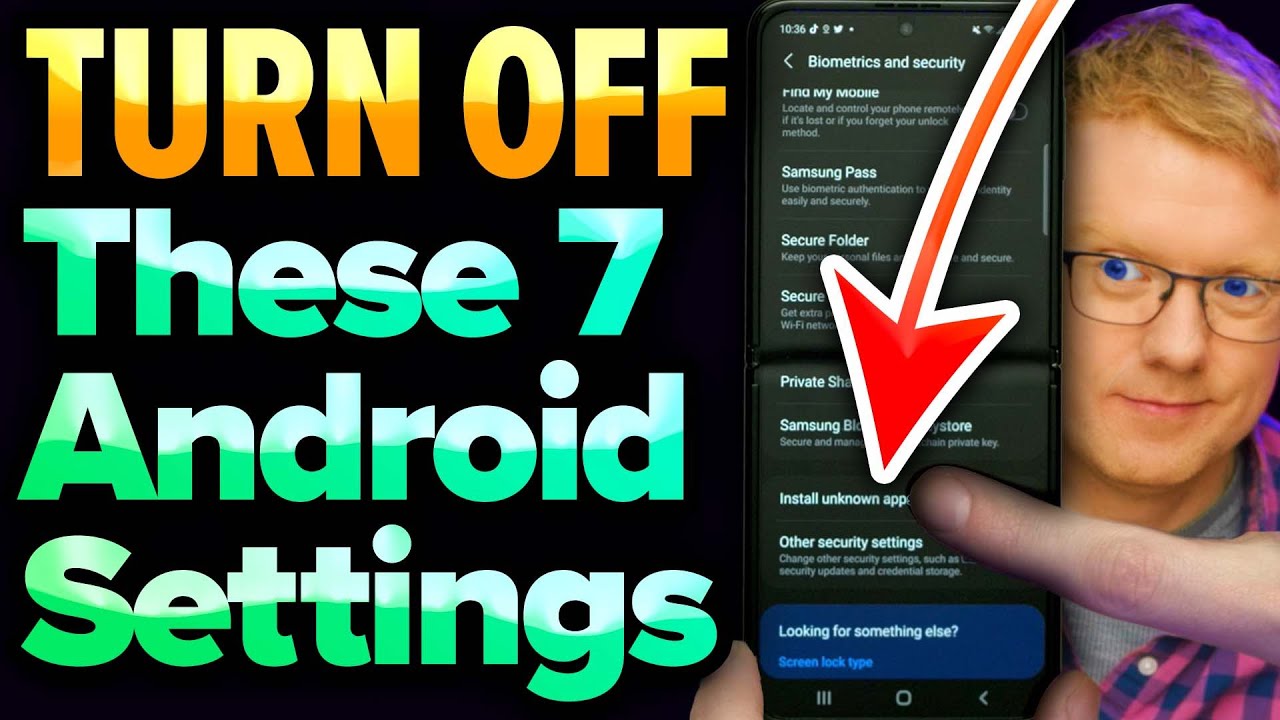
- Go to Privacy > Permission manager (or Apps > Permissions depending on your device).
- Review permissions for categories such as Camera, Microphone, Location, and Contacts.
- Revoke unnecessary permissions.
For example, a simple game should not need access to your microphone or contacts. Being selective here reduces potential data misuse.
2. Location Settings: Control Who Tracks You
Location data is one of the most sensitive types of information your Android device collects. Apps use this for navigation, local services, or targeted ads.
Privacy settings every Android user should check in location settings include:
- Turn off location for unnecessary apps: Only allow trusted apps to access your location.
- Use location permissions wisely: Opt for “Allow only while using the app” instead of “Always allow.”
- Disable location history: Prevent Google from storing every movement you make.
By managing location settings, you limit the risk of apps tracking your every step without your knowledge.
3. Google Account Privacy Controls
Most Android devices are tied to a Google account. Google collects vast amounts of data, including search history, YouTube activity, and device information.
Key privacy controls to check:
- Activity Controls: Visit myaccount.google.com/activitycontrols to pause tracking for Web & App Activity, Location History, and YouTube history.
- Ad Personalization: Turn off Ad Personalization to limit targeted ads.
- Data Download & Deletion: Regularly review and delete unnecessary data.
These settings help reduce the footprint of your digital activity and make your data less visible to advertisers.
4. Lock Screen & Security Features
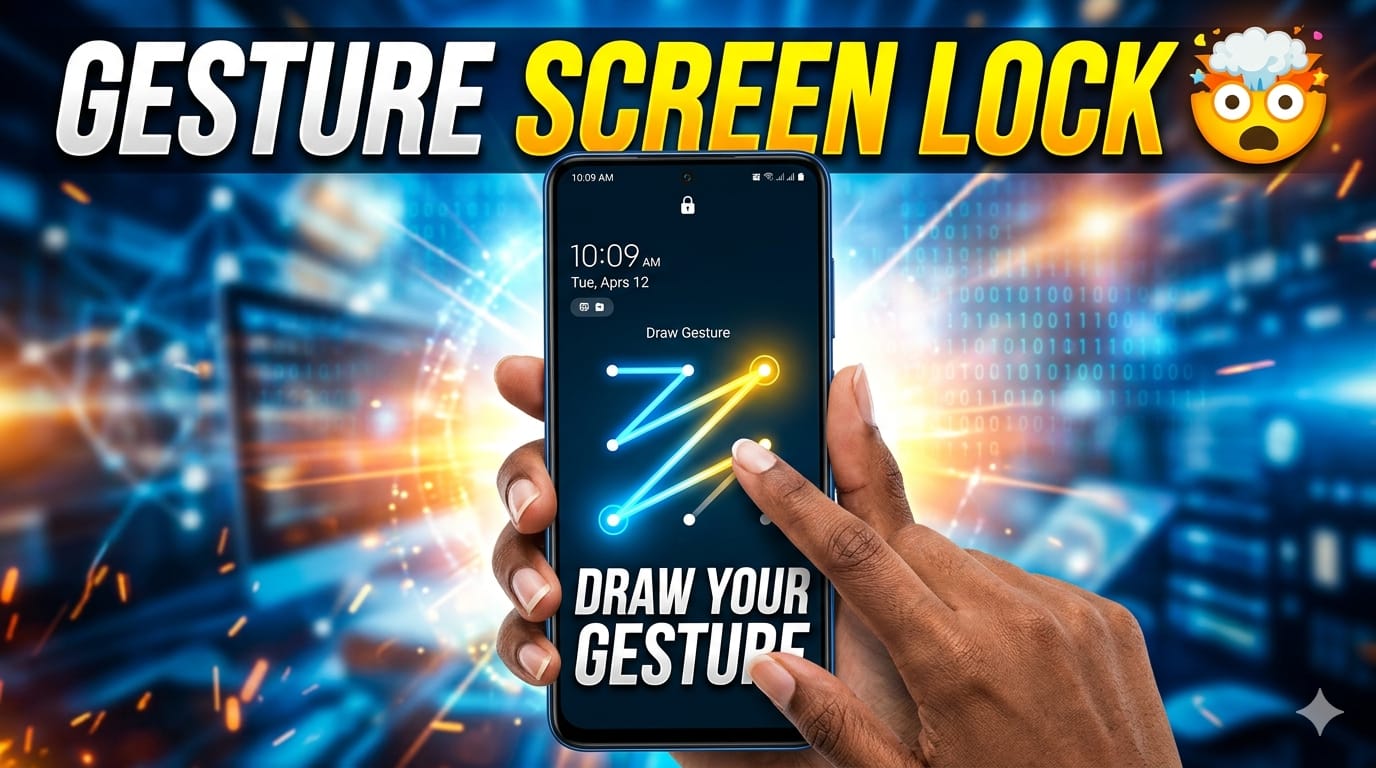
A strong lock screen is a first line of defense against unauthorized access. Many users rely on simple PINs or swipe patterns, leaving their devices vulnerable.
Recommended settings:
- Use a strong password or PIN instead of a pattern.
- Enable Fingerprint or Face Unlock for convenience and security.
- Turn on Smart Lock only in safe environments.
- Disable sensitive notifications on the lock screen to prevent data leakage.
These measures ensure that even if your phone is lost or stolen, your personal data stays secure.
5. App Data & Backup Settings
Many Android apps automatically back up your data to the cloud. While convenient, this can expose your personal information if not managed properly.
Tips to protect your data:
- Disable automatic backups for apps that store sensitive data.
- Use end-to-end encrypted cloud services for critical information.
- Regularly review which apps have access to backup services.
Managing app data settings prevents accidental exposure of personal information.
6. Network & Bluetooth Privacy
Android devices connect to Wi-Fi networks and Bluetooth devices frequently, sometimes without explicit consent. These connections can expose device details.
Privacy settings every Android user should check:
- Disable Location-based Wi-Fi scanning if not needed.
- Turn off Bluetooth when not in use.
- Avoid connecting to unknown public networks without VPN protection.
- Limit the visibility of your device name to others.
This reduces the risk of tracking and unauthorized connections.
7. Notifications & Sensitive Data Exposure
Notifications can leak sensitive information if they appear on your lock screen or in public view.
Steps to secure notifications:
- Go to Settings > Apps & notifications > Notifications.
- Disable sensitive content on the lock screen.
- Customize notifications for apps handling private information like banking apps or messaging platforms.
By controlling notifications, you prevent casual exposure of personal messages or account alerts.
8. Ads & Tracking Control
Android devices often display personalized ads based on app usage and browsing behavior. While some tracking is unavoidable, you can limit its scope.
How to manage ad tracking:
- Open Settings > Privacy > Ads.
- Enable Opt-out of Ads Personalization.
- Reset your Advertising ID periodically.
This helps reduce the number of targeted ads and limits data collection by advertisers.
9. Two-Factor Authentication (2FA)
Enabling 2FA adds an extra layer of security to your online accounts. Even if someone steals your password, they cannot access your account without a secondary code.
Important tips:
- Activate 2FA for Google, banking, and social media accounts.
- Use an authenticator app instead of SMS for better security.
- Regularly review connected devices to detect unauthorized access.
Two-factor authentication is one of the simplest ways to safeguard your digital life.
10. Regular Software Updates
Many Android users ignore system updates, but these often include critical security patches.
Key practices:
- Enable auto-updates for both Android OS and apps.
- Check for updates manually if auto-update is off.
- Update apps from trusted sources only.
Keeping your device up-to-date ensures you benefit from the latest privacy and security protections.
Bonus Tips for Privacy-Conscious Android Users
- Use Secure Messaging Apps: Consider apps with end-to-end encryption like Signal or WhatsApp for private communication.
- Limit Social Media Permissions: Avoid granting unnecessary access to your location, contacts, or camera.
- Review App Installations Regularly: Uninstall apps you no longer use.
- VPN Use: Protect your internet traffic on public Wi-Fi with a reputable VPN.
Incorporating these habits complements your privacy settings every Android user should check, giving you maximum control over your data.
Conclusion
Your Android device is a powerful tool, but it also holds your most sensitive personal information. By taking the time to review and adjust privacy settings every Android user should check, you gain control over your data, protect yourself from malicious threats, and limit unnecessary tracking.
Remember, privacy is an ongoing process. Regularly revisiting your device settings and Google account preferences ensures your information remains secure. Start today, because every step you take toward stronger privacy settings enhances your digital safety.