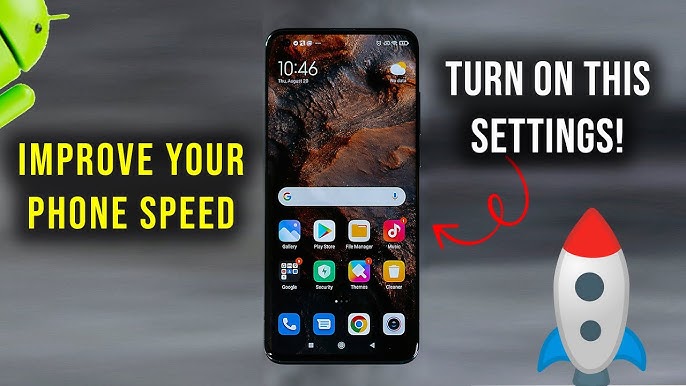

In today’s fast-paced digital world, a slow smartphone can be extremely frustrating. Apps lag, games stutter, and even basic functions feel sluggish. If your phone isn’t performing as smoothly as it should, don’t worry! There are several tweaks and settings that can drastically enhance your device’s speed and efficiency. In this guide, we’ll show you how to improve phone performance with these settings and get your device running like new again.
1. Clear Cache Regularly
One of the most overlooked steps to boost your phone’s performance is clearing cached data. Cache consists of temporary files stored by apps to speed up loading times. Over time, these files accumulate and can slow down your device.
Steps to clear cache:
- Android: Go to Settings > Storage > Cached Data > Clear.
- iPhone: iOS doesn’t allow clearing all cache at once, but individual app cache can be cleared under Settings > General > iPhone Storage.
Clearing cache frees up storage and ensures smoother app performance. Remember, doing this regularly helps your phone maintain optimal speed.
2. Limit Background Apps
Running too many apps in the background is a major reason your phone may feel sluggish. Background apps consume RAM and processing power, leaving less room for active apps.
How to manage background apps:
- Android: Settings > Apps > Background Activity > Restrict unnecessary apps.
- iPhone: Settings > General > Background App Refresh > Toggle off non-essential apps.
By managing background apps, you can significantly improve phone performance with these settings, especially if your device has limited RAM.
3. Optimize Battery Settings
Battery optimization doesn’t just extend battery life—it can also enhance performance. Modern phones have built-in features to adjust performance based on usage.
Tips for optimizing battery:
- Enable Battery Saver Mode during low power situations.
- Use Adaptive Battery (Android) or Low Power Mode (iPhone) to prioritize frequently used apps.
- Disable unnecessary notifications that wake up the screen.
Optimizing your battery ensures that your phone prioritizes essential tasks without slowing down.
4. Update Your Phone and Apps
Outdated software can be a hidden culprit behind poor performance. Updates often include performance improvements, bug fixes, and security patches.
How to keep your phone updated:
- Android: Settings > System > Software Update > Download and Install.
- iPhone: Settings > General > Software Update.
- Update apps regularly via Google Play Store or App Store.
Keeping both your system and apps updated is one of the easiest ways to improve phone performance with these settings.
5. Reduce Animations and Visual Effects
Fancy animations and transitions look good but can slow down your device, especially older phones. Reducing these visual effects can make your phone feel snappier.
Steps to reduce animations:
- Android: Developer Options > Window/Transition/Animator Scale > Reduce to 0.5x or off.
- iPhone: Settings > Accessibility > Motion > Reduce Motion.
This small tweak can make a surprisingly big difference in overall responsiveness.
6. Free Up Storage Space
Phones with low storage often struggle to perform. Ensure you maintain sufficient free space for the system to operate efficiently.
Tips to free up storage:
- Delete unused apps and media files.
- Move photos and videos to cloud storage like Google Photos or iCloud.
- Clear downloaded files and old documents.
Keeping your storage in check is a crucial step to improve phone performance with these settings, ensuring apps run without lag.
7. Manage Widgets and Home Screen Layout
Widgets are convenient but can consume CPU and battery. Excessive widgets or live wallpapers may slow your phone down.
Suggestions:
- Limit widgets to only essential ones.
- Use static wallpapers instead of live wallpapers.
- Organize apps in folders to reduce home screen clutter.
Simplifying your home screen reduces unnecessary background load, improving speed and efficiency.
8. Disable Unnecessary Notifications
Notifications are helpful, but too many alerts can affect performance and drain battery.
Tips for notification management:
- Android: Settings > Notifications > App Notifications > Customize.
- iPhone: Settings > Notifications > Choose Apps to disable alerts.
By controlling notifications, you prevent constant background interruptions, which helps in optimizing your phone’s responsiveness.
9. Use Lite or Optimized Versions of Apps
Many popular apps have “Lite” versions designed for better performance and reduced resource usage.
Examples:
- Facebook Lite, Messenger Lite
- Google Maps Go
- YouTube Go
Using these apps ensures smoother operation without sacrificing essential features, which is especially helpful for older or mid-range devices.
10. Restart Your Phone Regularly
It might sound simple, but restarting your phone can solve a lot of performance issues. A restart clears temporary system files, resets background processes, and refreshes memory.
Tip: Restart your phone at least once a week for optimal performance.
11. Monitor CPU and RAM Usage
Monitoring your phone’s resources helps identify apps or processes that consume too much power.
How to monitor:
- Android: Settings > Developer Options > Running Services.
- iPhone: Third-party apps like System Status or Battery Life can help.
Identifying resource-heavy apps allows you to restrict them or find alternatives, further enhancing performance.
12. Use Performance-Boosting Apps
There are apps designed to clean junk files, manage memory, and optimize battery usage. While caution is necessary, some reliable apps can be helpful.
Recommended apps:
- CCleaner (Android & iOS)
- Files by Google (Android)
- Dr. Cleaner (iOS)
Using these tools periodically complements manual optimizations, helping you improve phone performance with these settings effectively.
13. Factory Reset as a Last Resort
If all else fails and your phone is still slow, a factory reset can restore original performance. This wipes all data, so backup important files first.
Steps:
- Android: Settings > System > Reset Options > Erase All Data.
- iPhone: Settings > General > Reset > Erase All Content and Settings.
A fresh start can make even older phones feel significantly faster.
14. Maintain Your Phone Physically
Performance isn’t just about software. Physical maintenance can indirectly affect your phone’s speed.
Tips:
- Keep your phone cool; overheating reduces performance.
- Avoid using the phone while charging excessively.
- Clean the ports and screen to prevent dust accumulation.
Proper care ensures your phone operates efficiently for years.
15. Conclusion
Sluggish performance doesn’t mean it’s time for a new phone. By implementing these tips, you can significantly improve phone performance with these settings and enjoy faster, smoother, and more reliable operation.
Remember, consistency is key. Regular maintenance, smart app management, and using optimized settings keep your device running at peak performance. Whether you have an Android or iPhone, these techniques are universally effective.
Start with simple steps like clearing cache, updating apps, and managing notifications. Over time, incorporate advanced tweaks like reducing animations, monitoring RAM, or using performance-boosting apps.
Your phone can feel like new again—without spending a single penny. Apply these settings today and experience the difference!