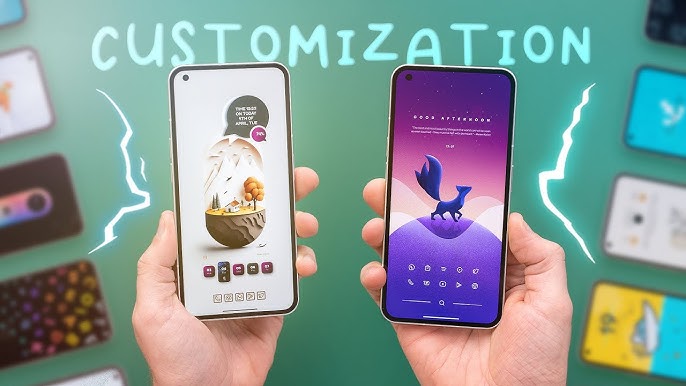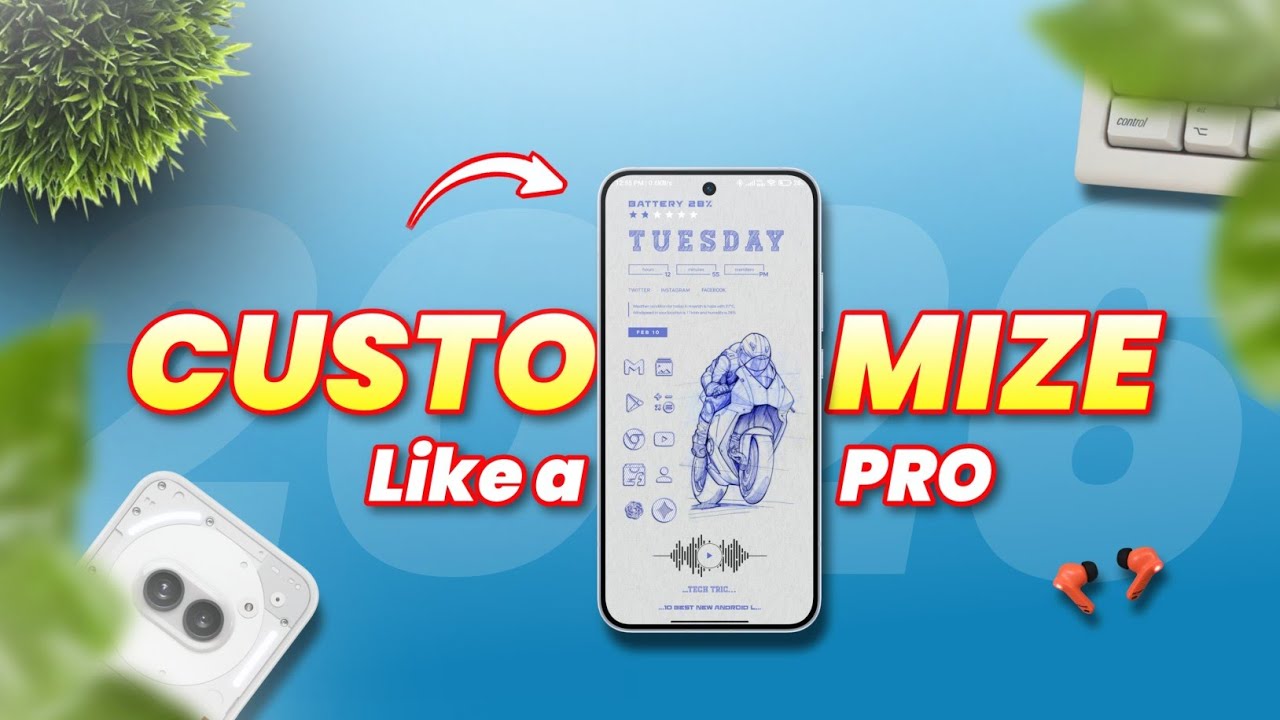

Android is powerful. But most people only use 30–40% of what their phone can actually do.
If you’ve ever wondered how to customize Android settings like a pro, you’re in the right place. Whether you want better performance, longer battery life, improved privacy, or a cleaner home screen — Android gives you full control.
In this complete 2026 guide, you’ll learn how to customize Android settings like a pro step-by-step — without rooting your phone or installing risky apps.
Let’s get started.
Why You Should Customize Android Settings
Many users buy expensive phones like the Samsung Galaxy S24 or Google Pixel 8, but never explore advanced settings.
Customizing Android settings helps you:
- Improve phone speed
- Increase battery life
- Enhance privacy & security
- Personalize design & layout
- Remove unnecessary features
- Create a smoother daily experience
Learning how to customize Android settings like a pro means making your phone truly yours.
1. Master the Home Screen Like a Pro
Your home screen is the first thing you see. Let’s optimize it.
✔ Change Launcher for Full Control
The default launcher is good, but third-party launchers give you more flexibility.
Popular options:
- Nova Launcher
- Microsoft Launcher
With these, you can:
- Change grid size
- Hide apps
- Add gestures
- Customize icons
- Lock layout
If you’re serious about how to customize Android settings like a pro, switching launchers is step one.
✔ Adjust Grid Size & Icon Layout
Go to:
Home Screen Settings → Layout → Grid Size
Set it to 5×5 or 5×6 for a cleaner look.
Smaller icons = more apps on screen = faster access.
✔ Use Widgets Smartly
Widgets are powerful if used correctly.
Instead of cluttering your screen:
- Add weather widget
- Add calendar overview
- Use battery monitor
Keep it minimal.
2. Optimize Display Settings
Display customization makes your phone feel premium.
✔ Switch to Dark Mode
Go to:
Settings → Display → Dark Theme
Dark mode:
- Saves battery on OLED screens
- Reduces eye strain
- Looks modern
Most Android phones like OnePlus 12 perform better in dark mode.
✔ Adjust Refresh Rate
High refresh rate = smoother scrolling.
Go to:
Settings → Display → Motion Smoothness
Switch to 120Hz if available.
Pro Tip:
Use adaptive refresh to balance battery & performance.
✔ Customize Always-On Display
Enable:
Settings → Lock Screen → Always-On Display
You can:
- Change clock style
- Add notifications
- Show battery percentage
This is one of the easiest ways to customize Android settings like a pro.
3. Control Notifications Like an Expert
Notifications can either help you — or stress you.
✔ Manage App Notifications Individually
Go to:
Settings → Notifications → App Notifications
Disable unnecessary ones.
For example:
- Shopping apps
- Game alerts
- Promotional messages
Keep only essential notifications:
- Messages
- Calls
- Banking apps
✔ Use Notification History
Enable:
Settings → Notifications → Notification History
You’ll never miss an important alert again.
✔ Customize Lock Screen Notifications
Choose:
- Show all
- Hide sensitive content
- Show nothing
This improves privacy significantly.
4. Boost Performance Settings
If you truly want to learn how to customize Android settings like a pro, performance tuning is important.
✔ Reduce Animation Speed (Hidden Trick)
Enable Developer Options:
- Go to Settings → About Phone
- Tap Build Number 7 times
- Go back → Developer Options
Change:
- Window Animation Scale → 0.5x
- Transition Animation Scale → 0.5x
- Animator Duration Scale → 0.5x
Your phone will feel twice as fast instantly.
✔ Remove Bloatware
Some brands pre-install unnecessary apps.
Go to:
Settings → Apps → Disable
Disable:
- Unused system apps
- Carrier apps
- Duplicate tools
This improves RAM usage.
✔ Limit Background Apps
Go to:
Settings → Battery → Background Usage Limits
Put heavy apps to sleep.
5. Customize Battery Settings Like a Pro
Battery life is critical.
✔ Enable Adaptive Battery
Android’s AI learns usage patterns.
Enable:
Settings → Battery → Adaptive Battery
This feature is powered by Google’s Android system intelligence.
✔ Turn Off Always Scanning
Go to:
Settings → Location → Location Services
Disable:
- Wi-Fi scanning
- Bluetooth scanning
This saves battery quietly in the background.
✔ Use Battery Usage Monitor
Check:
Settings → Battery → Battery Usage
Uninstall apps consuming too much power.
6. Improve Privacy & Security
Privacy is one of the most important parts of learning how to customize Android settings like a pro.
✔ Review App Permissions
Go to:
Settings → Privacy → Permission Manager
Remove:
- Microphone access
- Camera access
- Location access
From apps that don’t need them.
✔ Use Private DNS
Go to:
Settings → Network → Private DNS
Set to:dns.google
This improves browsing security.
✔ Enable App Lock (If Available)
Some Android skins offer built-in app lock.
Otherwise, use trusted security apps.
7. Customize Sound & Vibration
Make your phone feel premium.
✔ Adjust Vibration Intensity
Go to:
Settings → Sound & Vibration
Lower vibration for:
- Notifications
- Calls
This makes the phone feel less aggressive.
✔ Set Custom Ringtones
You can assign:
- Separate tones for contacts
- Different tones for apps
Small customization, big impact.
8. Smart Gestures & Shortcuts
Gestures make your phone efficient.
✔ Enable Navigation Gestures
Switch from 3-button to gesture navigation:
Settings → System → Gestures → Navigation Mode
More screen space. Cleaner look.
✔ Double Tap to Wake
Enable:
Settings → Gestures → Double Tap
Quick access without pressing power button.
✔ Quick Settings Customization
Swipe down twice → Edit buttons.
Add:
- Screen recorder
- Hotspot
- Dark mode
- Focus mode
Remove unused toggles.
9. Customize Google Settings
Since Android is developed by Google, you should also optimize Google features.
✔ Turn Off Personalized Ads
Go to:
Settings → Google → Ads
Disable ad personalization.
✔ Manage Backup Settings
Enable:
- Contacts backup
- App backup
- SMS backup
This keeps data safe.
✔ Customize Google Assistant
Adjust voice match, routines, and privacy settings.
10. Advanced Customization for Power Users
If you want to truly master how to customize Android settings like a pro, try these advanced tweaks.
✔ Use Focus Mode
Go to:
Settings → Digital Wellbeing → Focus Mode
Block distracting apps during work hours.
✔ Schedule Do Not Disturb
Set DND automatically during sleep.
✔ Use Secure Folder (If Available)
Some devices like Samsung offer Secure Folder for private apps.
11. Clean Storage Like a Pro
Storage optimization improves speed.
✔ Use Built-In Storage Cleaner
Go to:
Settings → Storage
Delete:
- Cached files
- Duplicate media
- Unused downloads
✔ Move Media to Cloud
Upload photos to cloud storage.
This frees internal storage.
12. Customize Lock Screen Like a Professional
Lock screen matters.
You can:
- Change clock style
- Add shortcuts
- Add contact info
- Enable fingerprint animation
A personalized lock screen makes your phone look premium instantly.
13. Automate Tasks Like a Pro
Automation saves time.
Use:
- Built-in routines
- Automation apps
You can automate:
- WiFi ON at home
- Silent mode at office
- Dark mode at night
14. Keep Android Updated
Customization also means staying updated.
Always check:
Settings → Software Update
New updates improve:
- Security
- Features
- Stability
Pro Tips to Remember
If you truly want to master how to customize Android settings like a pro, remember:
- Keep it minimal
- Disable what you don’t use
- Reduce animations
- Protect privacy
- Monitor battery
- Organize apps
- Update regularly
Customization isn’t about installing 100 apps. It’s about smart settings.
Final Thoughts: Make Android Truly Yours
Android is flexible. That’s its biggest strength.
When you understand how to customize Android settings like a pro, you:
- Make your phone faster
- Improve battery life
- Strengthen privacy
- Increase productivity
- Reduce distractions
Whether you’re using a budget device or a flagship like the Samsung Galaxy S24, these tips will transform your experience.
Start small. Change one setting today.
In a week, your phone will feel brand new.