
Smartphones are powerful in 2026. Whether you’re using the latest Android flagship or an older budget device, your phone is capable of handling multitasking, gaming, social media, and productivity apps. But over time, almost every phone starts slowing down.
If your device feels laggy, drains battery quickly, or freezes while switching apps, don’t worry. You don’t need to buy a new phone yet. You can improve phone performance with these settings — simple tweaks that make a real difference.
In this detailed guide, we’ll walk through the best settings and optimization tricks to boost speed, reduce lag, and extend battery life without installing risky cleaner apps.
Why Phones Slow Down Over Time
Before we jump into how to improve phone performance with these settings, it’s important to understand why phones slow down:
- Too many background apps running
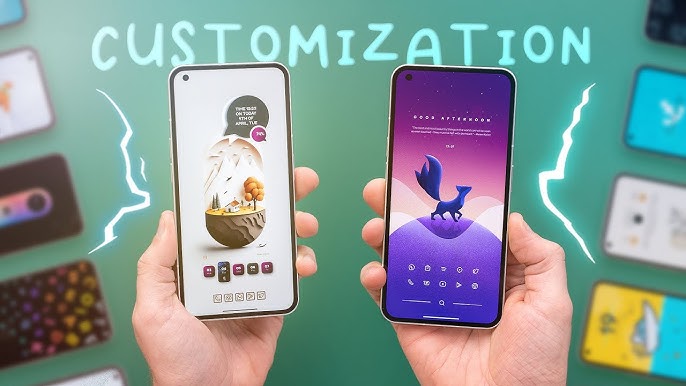
- Low storage space
- Heavy animations
- Outdated software
- Auto-sync features consuming RAM
- High screen resolution settings
- Excessive widgets and live wallpapers
The good news? Most of these issues can be fixed in minutes.
1. Reduce or Turn Off Animations
One of the fastest ways to improve phone performance with these settings is by reducing system animations.
Modern Android phones use animations for transitions, app opening, and multitasking. These animations look smooth but use CPU and GPU power.
How to Reduce Animations:
- Go to Settings
- Tap About Phone
- Tap Build Number 7 times to enable Developer Options
- Go back and open Developer Options
- Find:
- Window Animation Scale
- Transition Animation Scale
- Animator Duration Scale
- Set them to 0.5x or turn them off
Your phone will instantly feel faster.
2. Limit Background Processes
Apps running in the background consume RAM and battery. Even when you’re not using them, they slow down performance.
To truly improve phone performance with these settings, control background activity.
Steps:
- Open Settings
- Go to Battery
- Tap Background Usage Limits
- Put unused apps into “Deep Sleep”
You can also restrict apps individually in:
Settings > Apps > Select App > Battery > Restrict Background Usage
This frees RAM and improves multitasking speed.
3. Clear Cached Data (Not Full Reset)
Apps store temporary cache files. Over time, these build up and affect speed.
To improve phone performance with these settings:
- Go to Settings
- Open Storage
- Tap Cached Data
- Clear cache (if available)
You can also clear app cache manually:
- Settings > Apps > Select App > Storage > Clear Cache
⚠️ Do NOT clear “App Data” unless necessary — it logs you out.
4. Disable Auto Sync for Unnecessary Accounts
Auto-sync constantly refreshes emails, cloud backups, and social media.
This drains battery and slows performance.
To improve phone performance with these settings:
- Go to Settings
- Tap Accounts
- Disable sync for accounts you don’t need
For example:
- Turn off auto-sync for old email accounts
- Disable constant backup if not required
This reduces CPU load.
5. Free Up Storage Space
If your phone storage is above 80%, performance drops significantly.
Low storage causes:
- App crashes
- System lag
- Slow camera processing
To improve phone performance with these settings:
- Delete unused apps
- Remove duplicate photos
- Transfer videos to cloud storage
- Empty trash folders
Aim to keep at least 20–25% storage free.
6. Disable Live Wallpapers and Widgets
Live wallpapers and too many widgets constantly refresh in the background.
They:
- Use RAM
- Drain battery
- Slow down older phones
Replace live wallpapers with static images.
Remove unnecessary widgets like:
- Weather updates
- News feeds
- Stock tickers
This small change helps improve phone performance with these settings.
7. Turn Off Auto App Updates (Optional)
Automatic updates from the Google Play Store can slow down your phone during background downloads.
To control this:
- Open Google Play Store
- Go to Settings
- Tap Network Preferences
- Select Auto-update Apps
- Choose “Over Wi-Fi Only” or disable
This prevents sudden performance drops while gaming or working.
8. Use Lite Versions of Apps
Heavy apps consume more RAM.
Instead of full versions, try:
- Facebook Lite
- Messenger Lite
- YouTube Go
Lite apps use less memory and data. This is a powerful way to improve phone performance with these settings without upgrading hardware.
9. Restart Your Phone Weekly
It sounds simple, but restarting clears temporary memory files and resets background processes.
Many people never restart their phones.
Make it a habit:
- Restart once per week
- Especially after system updates
You’ll immediately feel smoother performance.
10. Lower Screen Resolution (If Available)
High-end phones allow screen resolution changes.
If your device runs at 1440p, switching to 1080p improves speed and battery.
Check:
Settings > Display > Screen Resolution
Lower resolution means:
- Less GPU usage
- Better battery
- Smoother gaming
Another easy way to improve phone performance with these settings.
11. Disable Unused System Features
Modern Android phones include:
- NFC
- Bluetooth
- Nearby Share
- Always-on display
- Location scanning
If you’re not using them, turn them off.
Each active service uses background resources.
12. Keep Software Updated
Updates often include:
- Performance fixes
- Security patches
- Bug improvements
To check:
Settings > Software Update > Download and Install
Keeping your system updated helps improve phone performance with these settings safely.
13. Use Built-In Device Care
Most Android phones have built-in optimization tools.
For example:
- Samsung phones have Device Care
- Xiaomi has Security App Cleaner
- OnePlus offers system optimization tools
Avoid third-party cleaner apps from unknown sources. They may show ads and slow your phone instead of helping.
Stick to official system tools.
14. Reduce Auto-Start Apps
Some apps automatically start when your phone boots.
To control this:
Settings > Apps > Special Access > Auto-start (varies by brand)
Disable unnecessary apps.
This improves boot speed and overall responsiveness.
15. Factory Reset (Last Option)
If nothing works and your phone is still slow, a factory reset may help.
Before resetting:
- Backup contacts
- Backup photos
- Save important files
A reset removes:
- Malware
- Corrupt files
- System clutter
After reset, your phone will feel new again.
Bonus Tip: Avoid Fake “RAM Booster” Apps
Many apps claim to boost RAM instantly.
In reality:
- Android automatically manages RAM
- Force closing apps too often may reduce performance
- Cleaner apps often run background ads
Instead, use the settings explained above to genuinely improve phone performance with these settings.
Signs Your Phone Needs Optimization
You should optimize your phone if:
- Apps crash frequently
- Keyboard typing lags
- Phone heats up
- Battery drains fast
- Camera opens slowly
- Storage almost full
These are clear signals that it’s time to adjust your settings.
How Often Should You Optimize?
To maintain speed:
- Clear cache monthly
- Check storage weekly
- Restart weekly
- Review background apps every 2–3 weeks
Consistency keeps your phone smooth.
Final Thoughts
You don’t need a new smartphone every year. Most performance issues are caused by poor settings management.
By following this guide and applying the recommended tweaks, you can improve phone performance with these settings quickly and safely.
Let’s recap the most important actions:
✔ Reduce animations
✔ Limit background apps
✔ Free up storage
✔ Disable live wallpapers
✔ Turn off unnecessary sync
✔ Keep software updated
✔ Restart regularly
These small changes create a big impact.
Your phone will feel:
- Faster
- Smoother
- More responsive
- More battery efficient
Try these methods today and enjoy a lag-free experience on your Android device.