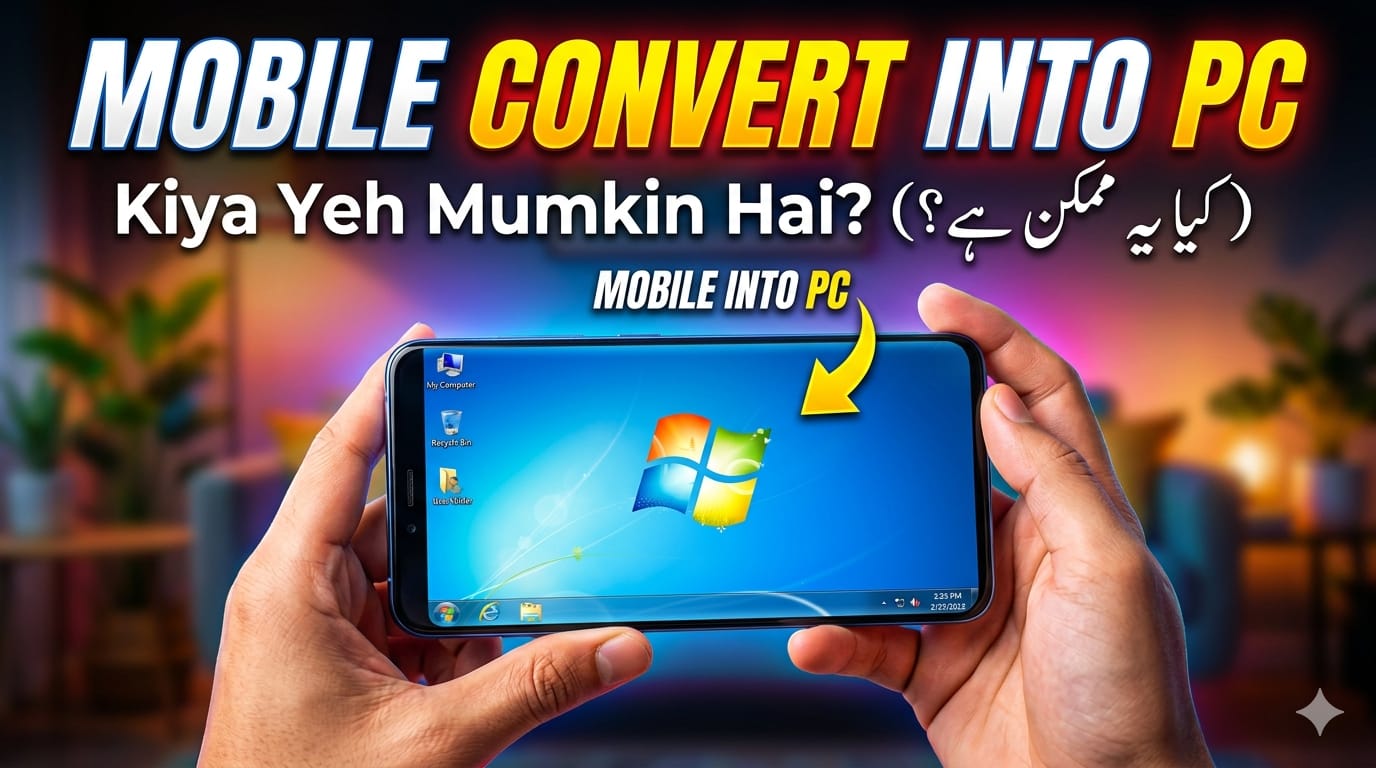

In today’s fast-paced digital world, smartphones have become incredibly powerful. With advanced processors, high RAM, and desktop-like capabilities, many users are now exploring how to Mobile Convert into PC and replace traditional computers for everyday tasks.
Whether you’re a student, freelancer, or business user, converting your mobile into a PC can save money, improve portability, and boost productivity. In this complete guide, we’ll explain everything you need to know about turning your smartphone into a PC-like system.
What Does “Mobile Convert into PC” Mean?
The term Mobile Convert into PC refers to transforming your smartphone into a desktop-like environment where you can:
- Use a keyboard and mouse
- Work on documents and spreadsheets
- Browse like a desktop browser
- Run apps in windowed mode
- Connect to an external monitor
In simple words, it means using your phone like a computer.
Why Convert Mobile into PC?
1. Cost-Effective Solution
Buying a PC or laptop can be expensive. If your smartphone is powerful, converting it into a PC can save money.
2. Portability
Your entire workstation fits in your pocket. Just plug into a screen and start working.
3. Productivity Boost
Using a keyboard and mouse increases typing speed and multitasking.
4. Ideal for Students & Freelancers
Perfect for online work, assignments, blogging, and freelancing tasks.
Requirements to Mobile Convert into PC
Before you begin, make sure you have:
Basic Requirements
- A modern Android smartphone (4GB+ RAM recommended)
- USB-C port (preferred)
- OTG support
Optional but Useful
- External monitor or TV
- Keyboard and mouse
- USB hub or docking station
- Stable internet connection
Methods to Mobile Convert into PC
There are several ways to achieve a PC-like experience. Let’s explore the best ones.
1. Use Desktop Mode (Built-in Feature)
What is Desktop Mode?
Some smartphones offer built-in desktop modes that automatically convert your mobile interface into a PC-like environment when connected to a monitor.
How to Use It
- Connect your phone to a monitor via HDMI adapter
- Enable desktop mode in settings
- Connect keyboard and mouse
Benefits
- Real desktop interface
- Multi-window support
- Smooth performance
2. Use Apps to Mobile Convert into PC
If your phone doesn’t have built-in desktop mode, don’t worry. Several apps can help.
Popular Apps
- Computer Launcher
- Sentio Desktop
- Leena Desktop UI
Features
- Start menu-like interface
- Taskbar support
- App windows
How It Works
These apps simulate a PC environment on your phone screen or external display.
3. Connect Mobile to Monitor
Wired Connection
Use a USB-C to HDMI adapter.
Wireless Connection
- Screen casting (Miracast or Chromecast)
- Smart TV casting
Tip
Wired connection gives better performance and less lag.
4. Use Remote Desktop Apps
Another powerful way to Mobile Convert into PC is by accessing a real PC remotely.
How It Works
- Install remote desktop apps
- Connect to your home/work computer
- Control it using your mobile
Best Use Case
- Heavy software tasks
- Office work
- Editing and programming
5. Cloud-Based Desktop Solutions
Cloud computing makes it even easier to turn your mobile into a PC.
Examples
- Online virtual desktops
- Browser-based tools
Benefits
- No heavy processing on phone
- Access from anywhere
- Works even on low-end devices
Best Accessories for Mobile Convert into PC
To get the best experience, consider these accessories:
1. Keyboard & Mouse
Bluetooth or wired both work.
2. USB Hub
Allows multiple connections at once.
3. External Monitor
Bigger screen improves productivity.
4. Phone Stand or Dock
Keeps your setup organized.
Use Cases of Mobile Convert into PC
1. Online Work
Freelancers can handle emails, writing, and research easily.
2. Students
Assignments, presentations, and study materials become easier.
3. Content Creation
Basic video editing, blogging, and social media management.
4. Business Tasks
Manage spreadsheets, meetings, and documents.
Advantages of Mobile Convert into PC
1. Space Saving
No need for a bulky setup.
2. Energy Efficient
Smartphones consume less power than PCs.
3. Multi-Functional Device
One device for everything.
4. Easy Setup
Plug and play in most cases.
Limitations You Should Know
While converting mobile into PC is useful, it’s not perfect.
1. Limited Software Support
Some desktop software may not run.
2. Performance Limits
Heavy tasks like gaming or video editing may lag.
3. Smaller Storage
Phones usually have less storage than PCs.
4. Compatibility Issues
Not all phones support desktop features.
Tips for Better Performance
To improve your experience:
- Close unused apps
- Use a wired connection instead of wireless
- Keep your phone updated
- Use lightweight apps
- Use external storage if needed
Future of Mobile Convert into PC
Technology is evolving rapidly. In 2026 and beyond:
- Smartphones will become even more powerful
- Desktop modes will improve
- Cloud computing will dominate
- Mobile-first work culture will grow
Soon, many users may completely replace PCs with smartphones.
SEO Benefits of Mobile Convert into PC Topic
If you’re running a website like leezup.com, targeting the keyword Mobile Convert into PC can be highly beneficial.
Why This Keyword Works
- High search demand
- Low to medium competition
- Trending topic in tech niche
Optimization Tips
- Use keyword in title, headings, and content
- Add internal links
- Include FAQs
- Use simple language for better readability
FAQs About Mobile Convert into PC
Can I really use my phone as a PC?
Yes, with the right setup and tools, your phone can perform most basic PC tasks.
Is it free to convert mobile into PC?
Mostly yes. Some apps and accessories may cost money.
Which phone is best for this?
Phones with higher RAM and USB-C support work best.
Do I need internet?
Not always. But internet improves functionality, especially for cloud and remote access.
Conclusion
The concept of Mobile Convert into PC is no longer futuristic—it’s a practical solution in 2026. With the right tools, apps, and accessories, your smartphone can easily replace a basic computer for everyday tasks.
Whether you’re looking to save money, work on the go, or simplify your digital life, converting your mobile into a PC is a smart move. As technology continues to evolve, this trend will only grow stronger.
Start today and unlock the full potential of your smartphone!